


























How to keep character consistency in AI illustrations

Luca Mussari
October 5, 2026 · 10 min read
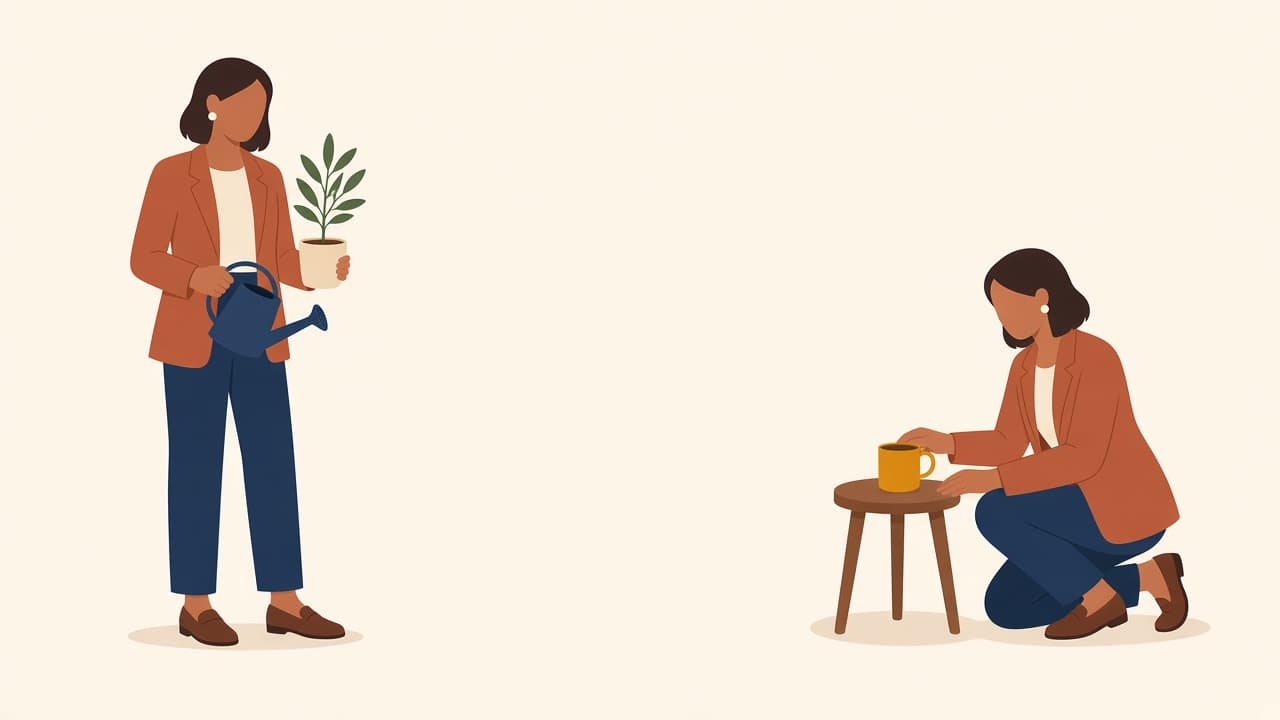
Onboarding screen one shows a woman in a terracotta blazer. Screen three shows someone else in a navy hoodie. You asked for the same person. The model drew a new one.
That's the failure mode for character consistency in AI illustrations. A fresh prompt starts from the words in the box. It has no memory of the last file.
Illustro keeps the person in two ways. Edit the illustration you already like, so the next pose starts from that picture. Or create an illustration pack and approve one character sheet before any scene runs. I use Edit when one frame is right and I need a variation. I use a pack when the job is a set: welcome, empty state, the work screen, the win.
Nielsen Norman Group's consistency heuristic is about the interface, and it still applies to the pictures. If the mascot changes between screens, people pause and wonder whether they are still in the same product.
Edit the illustration you already like
Start on Generate. Write the person and the first scene, create that illustration, then switch to Edit for the next one. Edit changes the picture you just made. Another Generate starts from the words alone, so the person can change.
Open the illustration editor. The prompt bar has three tabs: Generate, Edit, and Book.
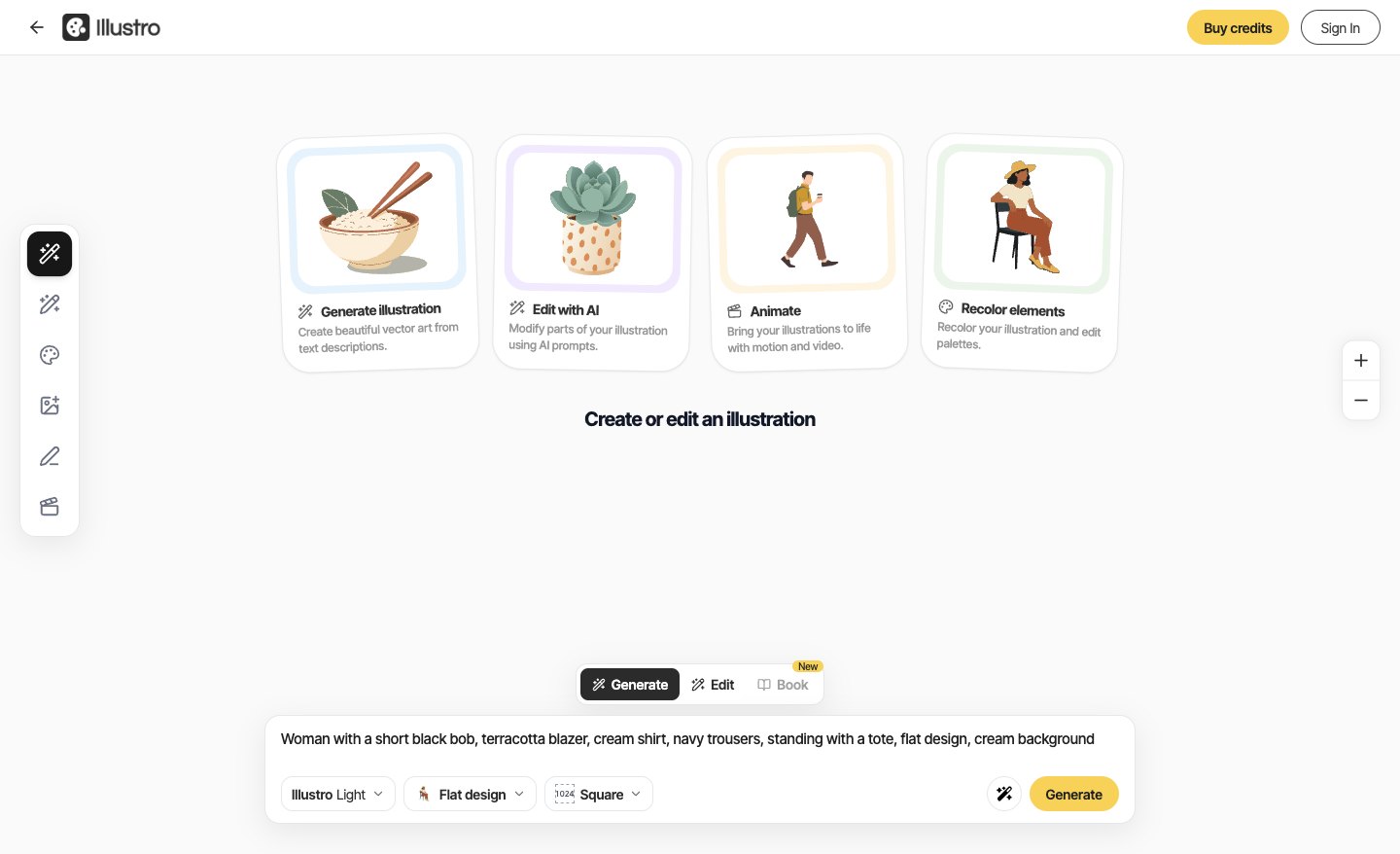
Here's the sequence.
- Stay on Generate. The placeholder is "Describe the illustration you want to generate." Write the person and the first scene: "Woman with a short black bob, terracotta blazer, cream shirt, navy trousers, standing with a tote, flat design, cream background."
- Set Flat design. Leave the size on Square unless the screen needs another ratio. Illustro Light is 1 credit for flat. Illustro MAX is 2. Click Generate.
- When that picture is the one you want to keep, click Edit. The placeholder is "Describe the changes you want to make."
- Repeat the constants and name the new action. "Same woman, short black bob, terracotta blazer, cream shirt, navy trousers, now sitting at a laptop with an empty dashboard." Change the place. Keep the bob, the blazer, and the trousers in the sentence.
- Click Edit with AI. That's 3 credits. The sparkle beside the button enhances the edit prompt, and it costs 0 credits. Skip it when the bob and the blazer are already in the sentence.
- Only a color is wrong? Use Colors on the left. Recolor is free, and the button can read Update color.
After the edit, look at the hair and the jacket. If they moved, run Edit again and put those constants back in the sentence. Editing an illustration without starting over covers the rest of that screen.
Book sits on the same bar, with a New badge. It's for a picture-book page. The placeholder is "What happens on the next page?" and the button is Next page. It keeps this character and draws a new moment. The tab stays off until an illustration is on the canvas, and it costs the same as one generate in the style you have selected.
Create an illustration pack when you need a set
Editing one file four times is how a homepage, an empty state, and a success screen drift apart. A pack plans the set, locks one sheet, then draws the scenes from that sheet. The short note on how to generate a consistent character pack is the hand-prompt version. This is the product flow.
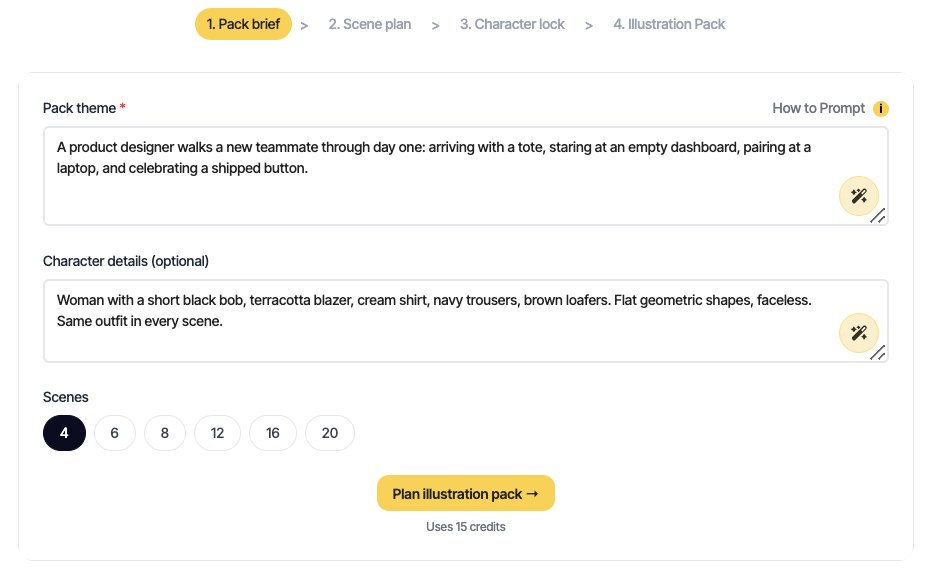
The steps in the tool are 1. Pack brief, 2. Scene plan, 3. Character lock, 4. Illustration Pack.
Pack theme is required, 500 characters max. Character details says optional, and it's capped at 500 too. Fill it. A blank character field lets the plan invent a person, and that person won't be the one you pictured.
The sparkle on those fields is Optimize prompt with AI. It costs 0 credits. Use it when the brief is thin. Skip it when you've already named the bob, the blazer, and the loafers.
A brief I'd ship for a product UI set, in flat design:
Pack theme: "A product designer walks a new teammate through day one: arriving with a tote, staring at an empty dashboard, pairing at a laptop, and celebrating a shipped button."
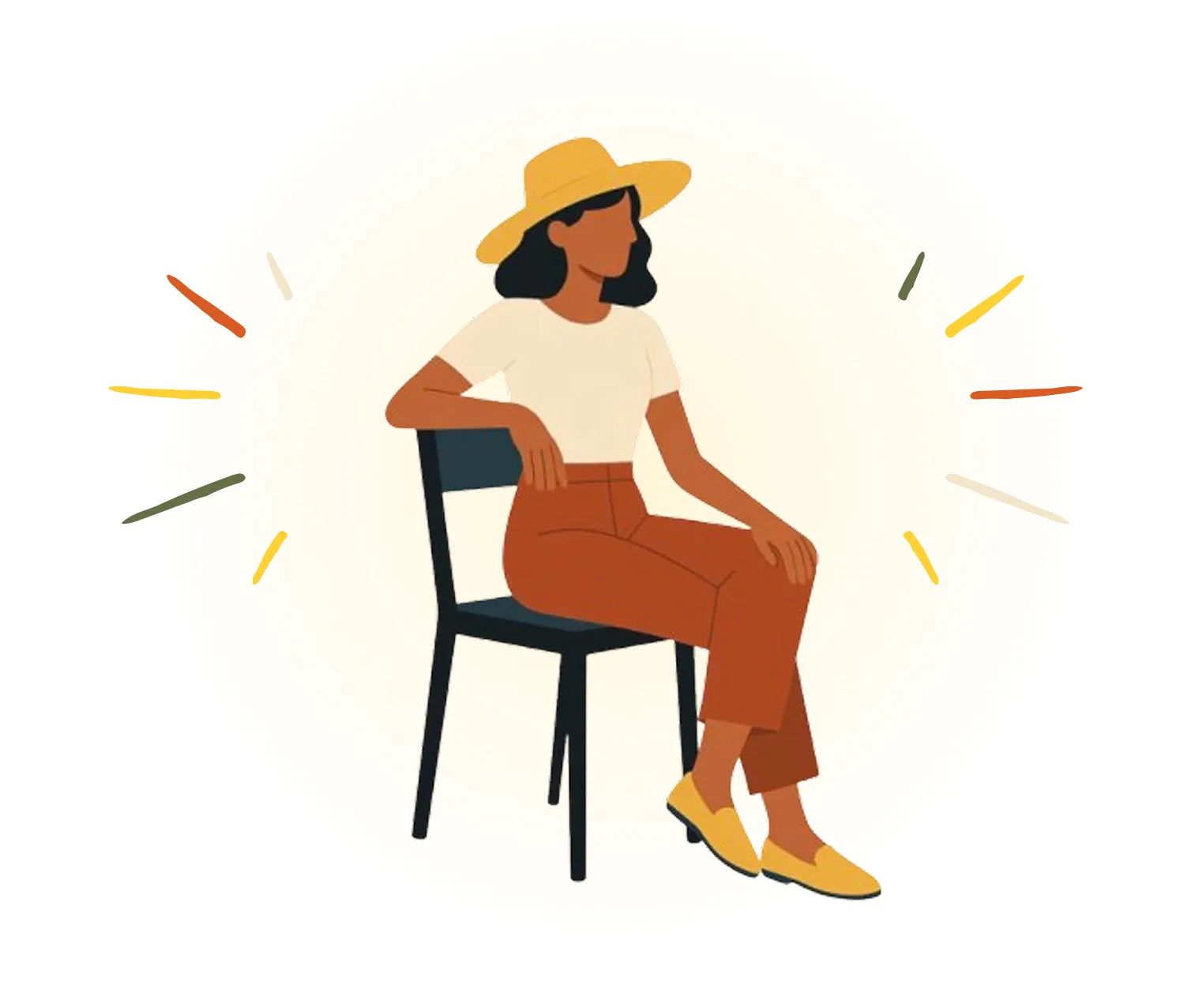
Character details: "Woman with a short black bob, terracotta blazer, cream shirt, navy trousers, brown loafers. Flat geometric shapes, faceless. Same outfit in every scene."
Flat figures in Illustro are faceless. Skip eyes, a smile, and a beauty mark. I leave the face as a skin-tone shape and put the recognition in the hair, the clothes, and the silhouette.
Pick a scene count: 4, 6, 8, 12, 16, or 20. Four scenes cover a product flow, and the form says Uses 15 credits. A 20-scene pack is 63 credits, and the later frames are where hands and props wander. Start at four.
Click Plan illustration pack →. Planning is free. You get a character name, a short character bible, and a scene list you can edit. Read every scene line. Each line should change the place and the action. None of them should redesign the person.
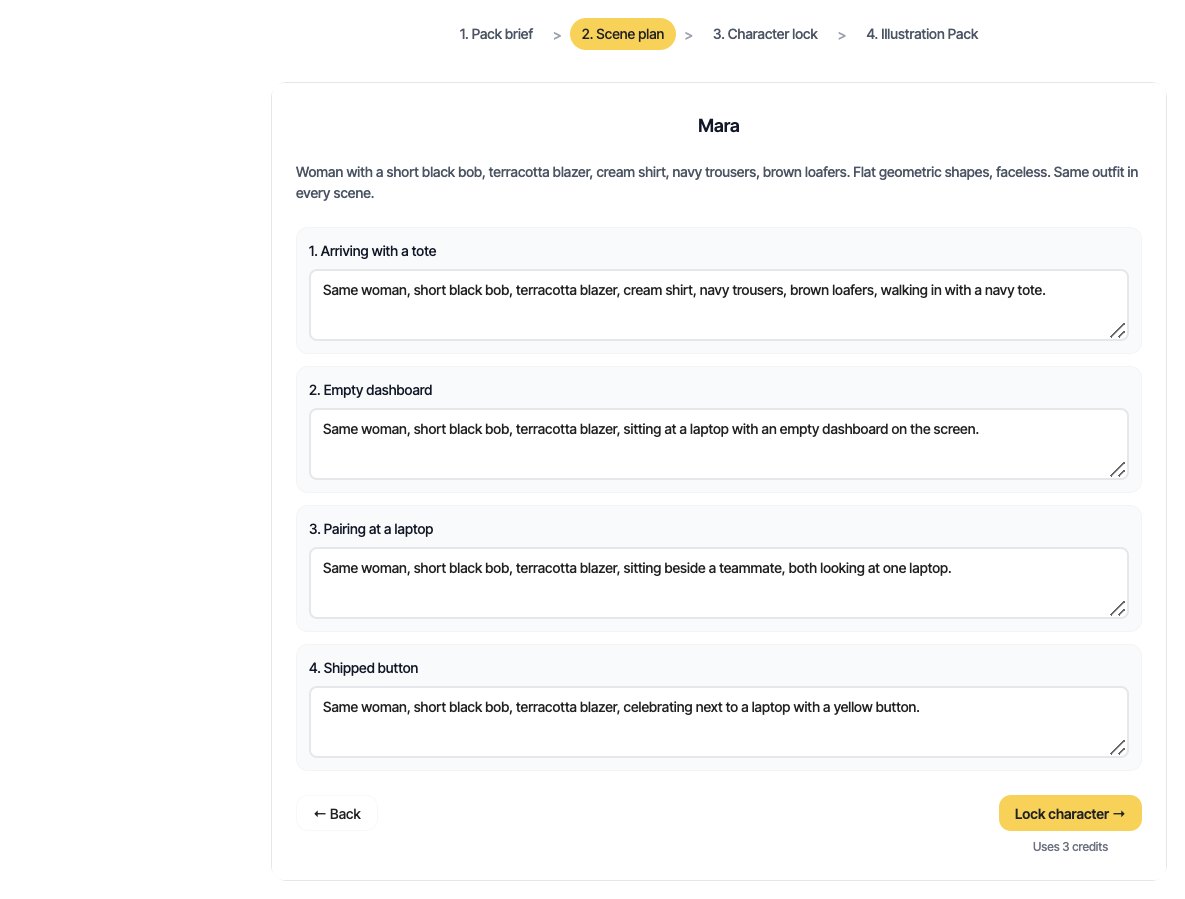
Then lock her:
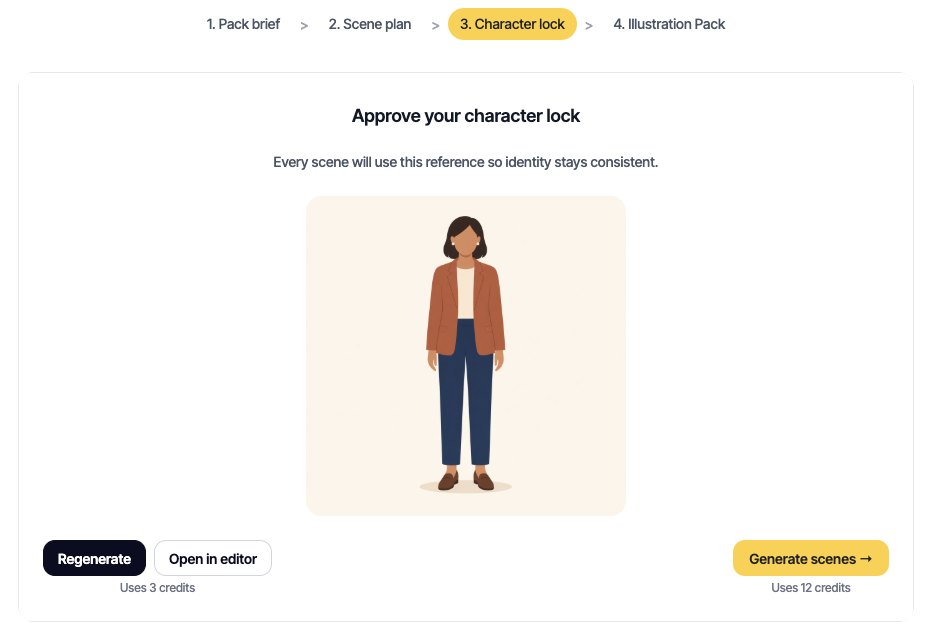
- Lock character →. That draws the sheet and costs 3 credits. The screen title is "Approve your character lock," because every later scene uses that picture.
- Wrong bob, or the blazer went mustard? Hit Regenerate. Another 3 credits. Approve the sheet only when you'd put that person on the site.
- Generate scenes →. Each scene is 3 credits. A 4-scene pack is 15 credits: 3 for the sheet, 12 for the scenes. Scenes stay blocked until you approve. The message is "Approve a character sheet before generating scenes."
Packs run in Illustro MAX. There's no Light switch on a pack. You get a consistent character, with small drift in hands and props. A Figma component works the same way: the sheet is the main component, and the scenes are instances that can still slip.
I approved a sheet once where the blazer was "close enough." Scene three arrived in a hoodie. The illustration packs post is the short version of what shipped. The approval step is the part that saves the set.
One scene grew a new coat? Regenerate that scene from the pack and keep the original scene prompt. Or Open in editor and use Edit on that frame. A fresh character description is how you get a cousin.
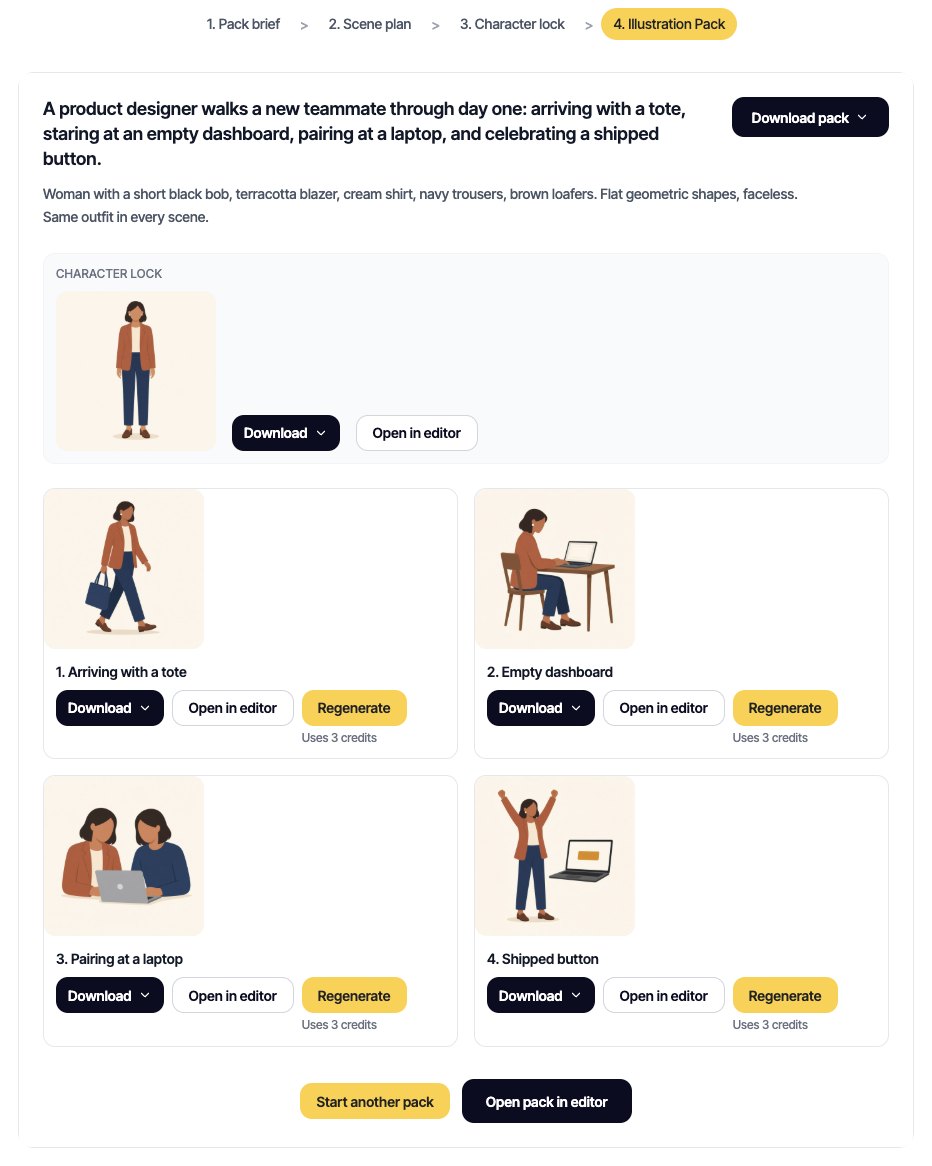
Flat packs can leave as SVG. Download pack includes PNG and JPEG at no credit cost. SVG is 1 credit per file, and only on flat packs. Children's book and 3D packs stay raster, so there's no SVG. Remove background is 1 credit on those styles.
Pick the path that matches the job
| Job | Where to start | Export |
|---|---|---|
| One pose is right, the next scene isn't | Illustration editor, Edit tab | PNG, JPEG, SVG on flat and line art |
| Onboarding, empty states, landing pages | Flat illustration pack | PNG, JPEG, SVG |
| Clay figurine, no Blender file | 3D character pack | PNG, JPEG |
| A picture-book sequence | Children's storyboard, or Book in the editor | PNG, JPEG |
Line art has a generator and no pack. Repeat the brief by hand, with Color or B&W set, or Edit the file you already like. Expect more drift than a locked sheet. A storybook uses the same lock with a softer palette. The storybook character guide covers the page, and storyboard packs also offer 24 and 28 scenes. Still one hero.
Illustro Light is for a single sketch (1 credit for flat or line art, 2 for children's book or 3D). Illustro MAX is for a file you ship (2 or 4). A 4-scene pack needs 15 credits. The Starter pack on Illustro pricing is $7 for 100 credits, as of October 2026, and those credits don't expire.
Need the set in Figma? Export SVG from the flat pack and place the frames, or generate from the plugin on the same account.
Where consistency stops
Character consistency here means one approved person, one style, and a handful of situations.
- Edit changes the file on the canvas. It doesn't plan the rest of the set.
- A second person means a second pack. The two sheets won't match.
- Book is the next page of a picture book.
- Flat stays flat. 3D stays stylized clay. A children's storyboard stays in the children's book look.
- You get a short bible. A turnaround with expressions and a wardrobe is a different job.
- Line art still has no lock button.
A brand system with type, icons, and a dozen mascots is still a job for a human illustrator. I use Edit or a pack for a coherent first set on a deadline, and I send a hero the brand already owns to a person.
Frequently asked questions
How do you keep AI characters consistent?
Edit the illustration you already like, or lock a character sheet in an illustration pack. Repeating "the same woman" in a new Generate helps on a single retry. It falls apart across a set. Edit with AI costs 3 credits and starts from the picture on the canvas. Lock character costs 3 credits, and pack scenes start only after you approve the sheet.
How do you make AI-generated illustrations consistent?
Keep the style, the outfit, and the silhouette fixed. Change the action. On one file, switch the prompt bar to Edit and describe the new scene. For a set, plan the scenes as one afternoon, then compare hair and clothes and regenerate the outlier.
Which tool should you use for character consistency in illustrations?
Use Edit when one illustration is already right. Use an illustration pack when you need matching scenes for onboarding, empty states, or a storyboard. A general image generator treats every prompt as a new draw, which is why the person changes. Expect a recognizable person, and check the outliers before you export.
Why is AI image generation inconsistent?
Each generation is a new sample. Leave hair, clothes, and proportions out of the prompt and those details are free to change. A detailed prompt still drifts on a new pose, because the model is drawing again. Edit and a locked sheet both give the next image a picture to follow.
How many credits does a consistent character set cost?
One Edit with AI is 3 credits. Colors is free. A pack sheet is 3 credits, and each pack scene is 3 credits, because packs run in Illustro MAX. Four scenes cost 15 credits. Twenty scenes cost 63. Planning and Optimize prompt with AI are free. PNG and JPEG downloads are free. Each SVG in a flat pack is 1 extra credit. Signup includes 3 credits, so one edit or the sheet fits, and a full pack needs more.
Can one pack mix flat design and 3D?
A flat pack stays flat. A 3D pack stays clay. A children's storyboard stays in the children's book style. Two styles means two packs and two sheets. They'll read as cousins, which is fine when the channels differ and a problem when they sit on the same page.